Quick start
Start with GanttPulse in ten minutes
From the download to your first plan, in nine short parts. Then eleven tips.
What you need
- Windows 10 or 11 (64-bit).
- Google Chrome or Microsoft Edge (Windows already has Edge).
- About 300 MB of free disk.
No admin rights needed. After the download GanttPulse works without the internet: your plans stay on your PC.
-
1Download it (1 minute)
- Download
GanttPulse-1.8.1-Setup.exefrom the download page. - Your browser may hold the file, because few people have downloaded it yet. In Edge, point at the download, click its …, then Keep; in the next window, click the arrow next to Delete, then Keep anyway. In Chrome, click the arrow next to Suspicious download blocked, then Download suspicious file.
-
To check the file is ours, open PowerShell and run
Get-FileHash "$env:USERPROFILE\Downloads\GanttPulse-1.8.1-Setup.exe"The Hash it prints must match the SHA-256 on the download page.
- Download
-
2Install it (1 minute)
- Windows says Windows protected your PC. Click More info, then Run anyway.
- Why: GanttPulse is new and not code-signed yet, so Windows does not know it. Only do this with a file you downloaded from ganttpulse.com.
- If Windows says Smart App Control blocked it, Windows allows no exception for one app. See the FAQ.
- The installer asks for no password. Keep Create a desktop shortcut ticked.
- On the last page, keep Launch GanttPulse Login now ticked and click Finish. In the Start menu the app is called "GanttPulse Login".
-
3Wait for the first start (up to two minutes, once)
- The first start can take a minute or two while Windows checks the new files. Nothing shows during the wait. Don't click again: the window opens by itself.
- GanttPulse opens in its own window: Chrome or Edge without the browser bars.
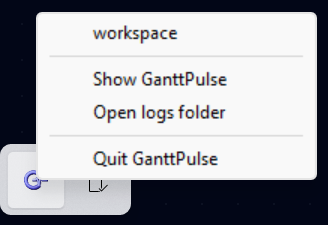
- Its icon sits in the system tray at the right end of the taskbar, maybe hidden under the ^ arrow.
- Closing the window keeps GanttPulse running. To stop it, right-click the tray icon and choose Quit GanttPulse. To bring the window back, choose Show GanttPulse.
-
4Make your account (1 minute)
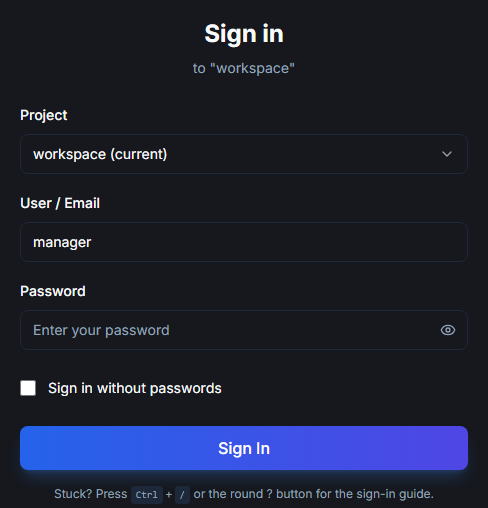
The first screen says Sign in to "workspace". In a new file, this makes your account:
- Type a name (or your email) in User / Email.
- Type a password of 4 or more characters.
- Click Sign In.
- You are now the file's manager.
- Keep your password safe: a file with only one manager has no password reset.
- If only you use this PC, you can tick Sign in without passwords instead.
- On a company PC that blocks PowerShell, don't tick it: sign in with a password. See the known issue.
-
5Set your work week first (30 seconds)
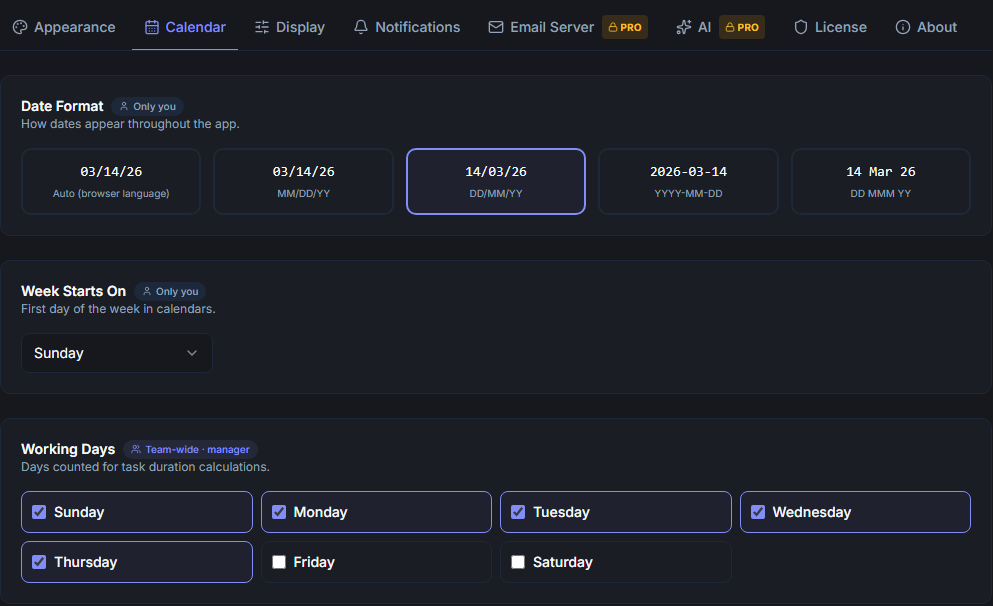
- New files count Sunday to Thursday as working days.
- If your week is Monday to Friday, open Settings, then Calendar, then Working Days, and pick your days. While you are there, Week Starts On sets the first day of your calendar.
- Do this before you plan: a task's length counts working days.
-
6Look at the demo (optional, 3 minutes)
- Open your account menu (your name) and choose Log out.
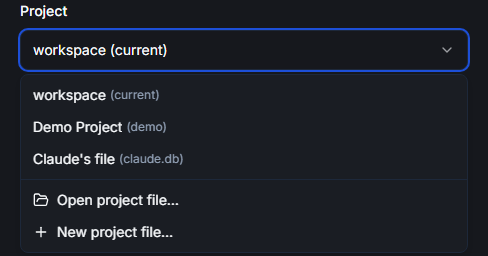
- In the Project list, pick Demo Project (demo). It fills in the manager's account; the password is
0000. - The demo's 7 tasks show two summaries, links between tasks, and a milestone.
- On the Free plan, skip Generate a sample project if you want your own project. The sample is a real project and uses your plan's one project. You can delete it later.
-
7Make your project and its tasks (3 minutes)
- Back in your own file, click Create your first project and give it a name.
- Press N for a new task, type its name, and confirm.
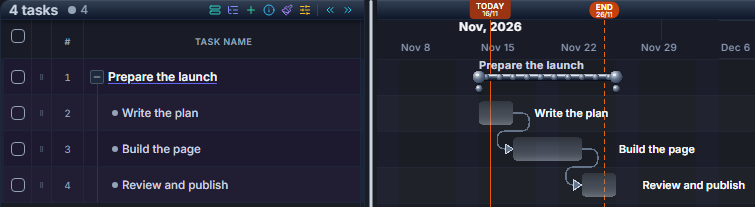
- Building the list: Shift+Enter adds a task below the one you selected; Tab puts a task under the one above it, which becomes a summary; Shift+Tab moves it back out. On Free, a summary holds one level of tasks.
- Setting dates: drag a bar to move it, and drag its end to change its length.
- Linking: drag from the small circle at a bar's end onto another task. The second task then starts after the first ends.
-
8Track the work
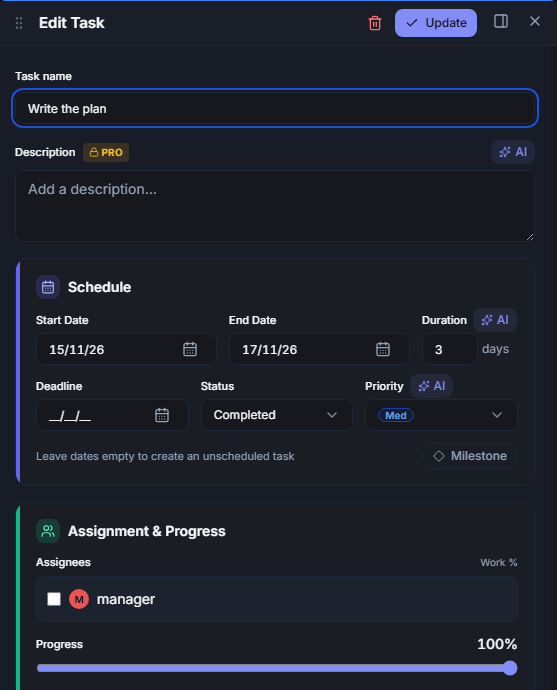
- Set a task's % done. At 100 % the task is done; its status turns Completed by itself.
-
9Find help
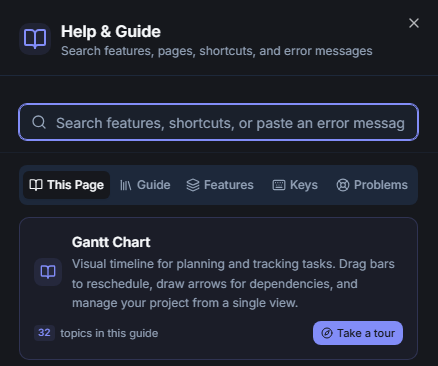
Press Ctrl+/ anywhere for Help & Guide. It has five tabs:
- This Page explains the page you are on.
- Guide lists every page and every article. Its Start Here article, under Navigation, has the first ten minutes for a manager, a member and a viewer.
- Features has an article for each feature.
- Keys lists every shortcut.
- Problems explains the messages the app can show, and what to do.
- The full User Guide (PDF) is on this site: the User Guide
Tips for a good start
- See only open work. Click Filters (the funnel), then the check-circle icon, Hide Done. Finished tasks leave the chart. To keep the last few in view, set last [N]. Each project remembers its filters. With Claude's projects this is the best view: as Claude finishes tasks they drop away, and you see what is left.
- Ctrl+K opens the command palette: every command, by name.
- Ctrl+Z undoes and Ctrl+Y redoes. Edit › History… lists your changes.
- View › Go to Today jumps to today. View › Show › Mini-map helps in long plans.
- View › Show › Critical path shows the tasks that decide your end date.
- Before work starts, Baseline › Capture baseline… saves today's plan to compare against later (managers).
- Ctrl+Shift+Space hides the app bars and gives the chart the whole window. The strip at the top brings them back.
- Ctrl++ and Ctrl+− zoom the app in and out, one step at a time; Ctrl+0 brings it back to 100 %. The + is the = key, or + on the number pad.
- With a task selected, ← and → move it a day, Alt+↑ and Alt+↓ move it among its neighbours, and Enter renames it.
- To assign work to someone who never signs in, add them on the Team page as a Contractor ("Name only; no login, no seat"). They don't use one of your 3 seats.
- Back up your plans. Quit GanttPulse from the tray, then copy every
.dbfile you use somewhere safe (another drive or the cloud): yourworkspace.dband Claude'sclaude.dbin%USERPROFILE%\GanttPulseDesktop Login, and project files you made with the full app, by default inDocuments\GanttPulse Login.
What the Free plan gives
- Limits: 1 project, 15 tasks in it, and 3 people who sign in. Viewers and contractors don't count.
- Features: the Week view, Finish-to-Start links, and one level of summaries.
- Claude's projects: no limit, view-only.
- Want everything? During the beta the full app is free with a beta key (3 months of Pro): ask for a beta key.
Using Claude Code? Start with Claude Code.